How to Set Up Message Notifications: Enable in 2 Steps, Never Miss Important Messages
When using IntBell for daily communications, missing alerts for incoming messages can easily cause you to overlook critical client replies and team discussions. To solve this, we have launched the brand-new system message notification feature. With just two setup steps, you can receive desktop pop-up alerts instantly, even if you are not staying on the work platform page or browsing other webpages.
Step 1: Access the Work Platform
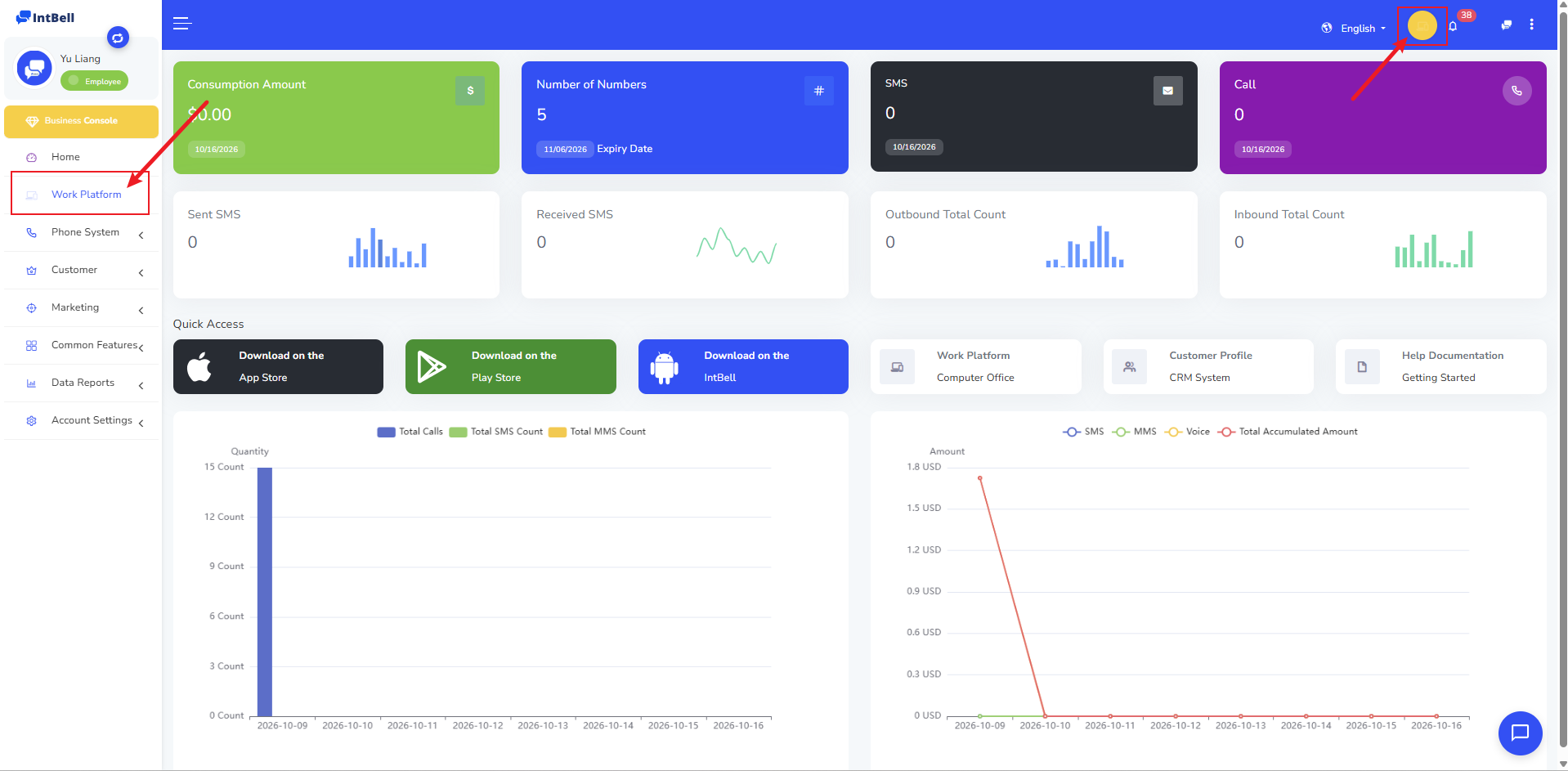
After logging into your IntBell account, you will land on the system homepage. There are two ways to enter the work platform:
- Click Work Platform on the left sidebar of the homepage;
- Or directly click the Work Platform button at the top right corner of the page.
Once entered, you will see our brand-new UI interface. Core metrics such as spending amount, number of phone numbers, SMS and call data are displayed at a glance. Quick access entries and chart statistics also streamline your daily operations.
Step 2: Enable System Notifications
Inside the work platform, click the Message Notifications button at the top right corner of the page. In the pop-up message notification panel, click Enable Messages to finish the configuration.
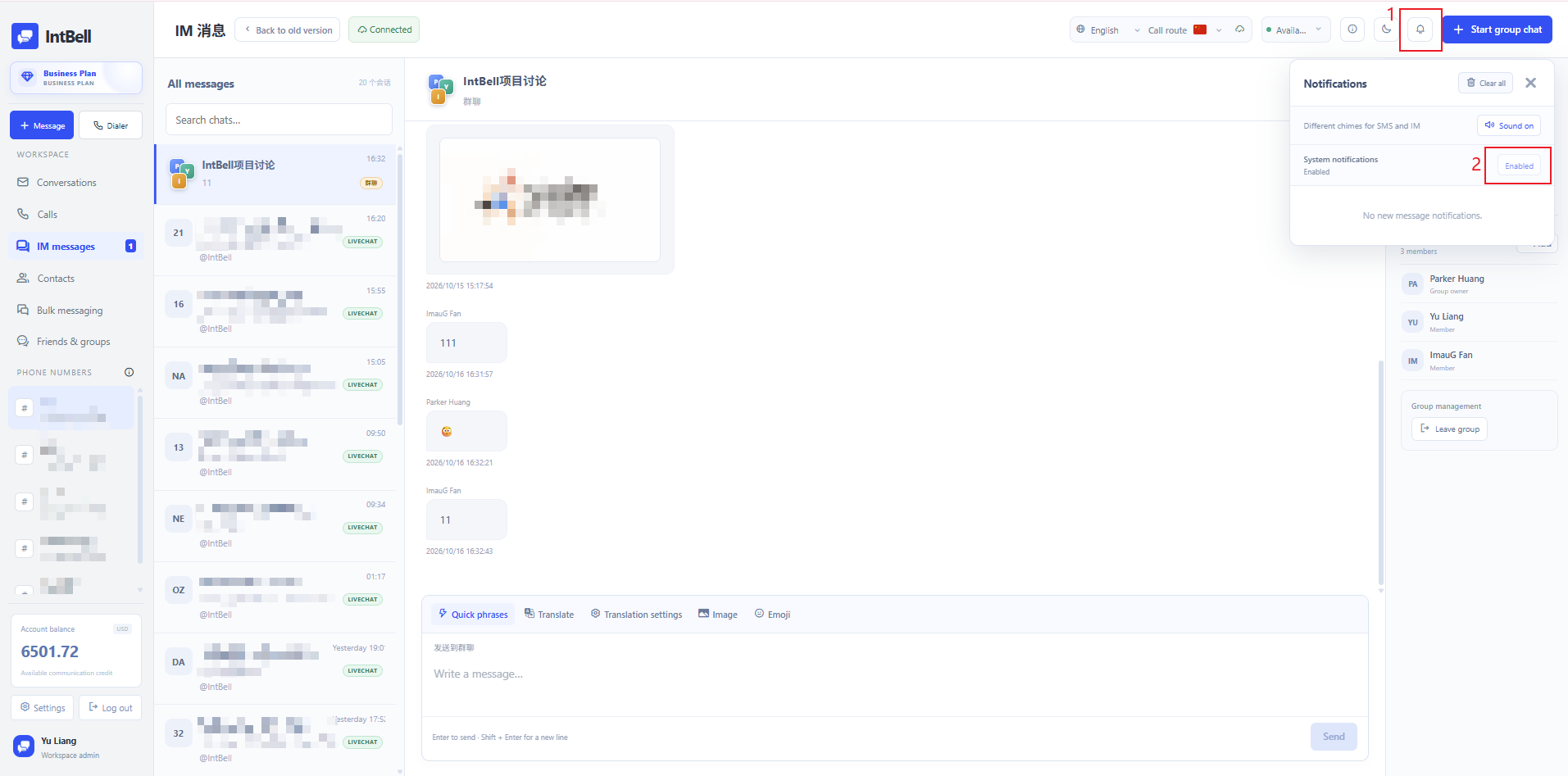
Tip: When enabling for the first time, your browser may prompt for permission. Please select Allow. Otherwise, the system cannot push desktop notifications to you.
What Happens After Setup
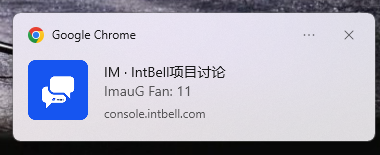
After successful activation, even if you leave the work platform page — for example, when viewing customer management, data reports, or switching to other browser tabs — a notification pop-up will promptly appear at the bottom-right corner of your desktop whenever a new message arrives. Simply click it to jump directly and check the message, so you won’t miss any important updates.
Closing Remarks
The message notification feature makes every communication on IntBell timelier and more efficient. Log in to your account now, turn on notifications following the two steps above, and explore the upgraded work platform! Should you have any questions during use, feel free to reach out to our support team anytime.